

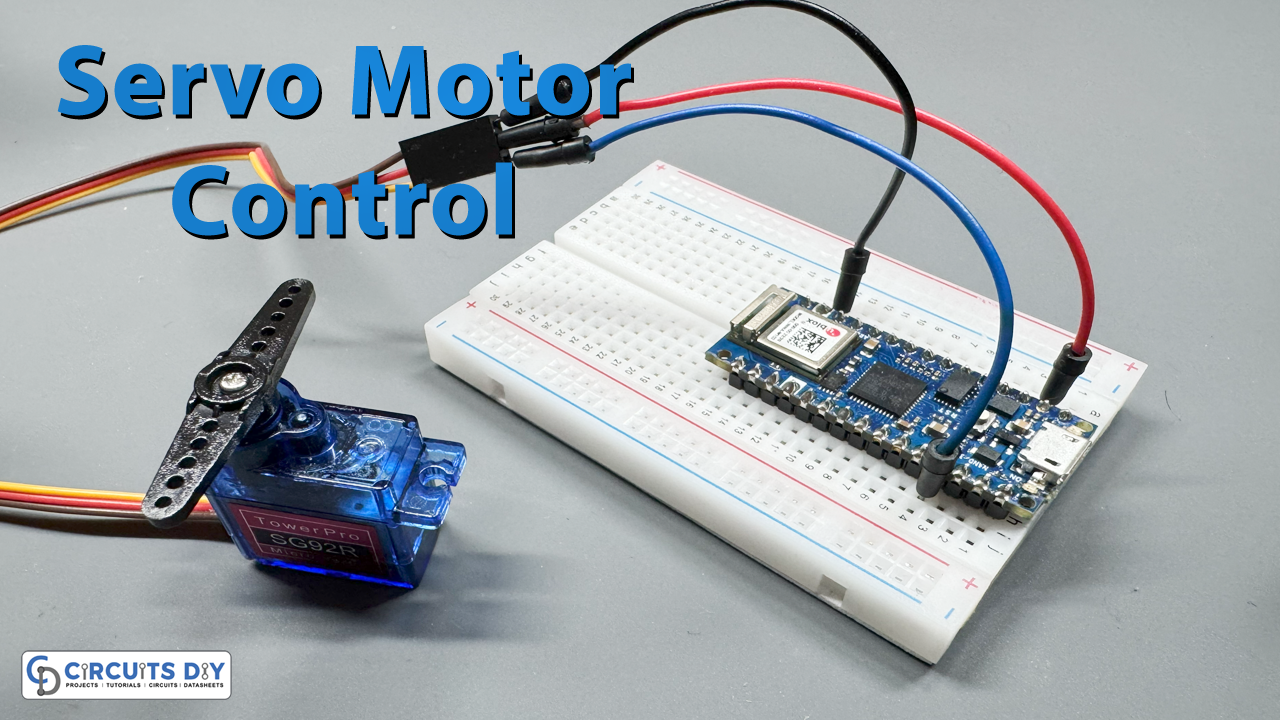
In this project
PCBWay now offers a free purple solder mask at no extra charge, making your boards stand out in style. PCBWay provides high-quality PCB prototyping and assembly at an affordable price, starting at just $5 for 5 PCBs. With fast turnaround, great customer support, and easy online ordering, it’s a top choice for hobbyists and professionals alike.

Hardware Components
| Quantity | Component | Description |
|---|---|---|
| 1 | Arduino Nano 33 IoT | Microcontroller board with built-in WiFi (ideal for IoT projects) |
| 1 | SG92 Micro Servo Motor | Small servo motor used to control the lock mechanism |
| 1 | Breadboard | For easy prototyping and connections |
| 1 | Micro-USB Cable | To power and program the Arduino |
| Few | Jumper Wires | For making the circuit connections |
Schematic
Wiring / Connections
| Arduino Nano 33 IoT Pin | SG92 Servo Motor Pin | Description |
|---|---|---|
| D9 | Signal (Orange) | Controls servo movement |
| 5V | VCC (Red) | Powers the servo motor |
| GND | GND (Brown) | Common ground connection |
How the Project Works
The Arduino Nano 33 IoT connects to your home WiFi network using the WiFiNINA library. Once connected, it runs a small web server that can be accessed from any device (PC, tablet, smartphone) on the same network.
When you open the Arduino’s IP address in a browser, you’ll see a simple webpage with two buttons:
- Lock 🔒 → Moves the servo to lock position (0°)
- Unlock 🔓 → Moves the servo to unlock position (90°)
The webpage also displays the current lock status with icons for better visualization.
Arduino Code
#include <WiFiNINA.h>
#include <Servo.h>

// Replace with your WiFi credentials
char ssid[] = "Wi-Fi DCB367 2.4G";
char pass[] = "tsTSP2SG";

WiFiServer server(80);
Servo myServo;

// Servo positions
int lockPos = 0;     // locked
int unlockPos = 90;  // unlocked
String lockState = "LOCKED";  // initial state

void setup() {
  Serial.begin(9600);

  // Connect to WiFi
  while (WiFi.begin(ssid, pass) != WL_CONNECTED) {
    Serial.print(".");
    delay(1000);
  }
  Serial.println("\nConnected to WiFi");
  Serial.print("IP Address: ");
  Serial.println(WiFi.localIP());

  server.begin();

  // Attach servo to pin 9
  myServo.attach(9);
  myServo.write(lockPos);
}

void loop() {
  WiFiClient client = server.available();
  if (client) {
    String request = client.readStringUntil('\r');
    client.flush();

    if (request.indexOf("/LOCK") != -1) {
      myServo.write(lockPos);
      lockState = "LOCKED";
    } else if (request.indexOf("/UNLOCK") != -1) {
      myServo.write(unlockPos);
      lockState = "UNLOCKED";
    }

    // --- Send HTTP response once ---
    client.println("HTTP/1.1 200 OK");
    client.println("Content-type:text/html");
    client.println("Connection: close");
    client.println();

    // --- HTML Page ---
    client.println("<!DOCTYPE HTML>");
    client.println("<html>");
    client.println("<head>");
    client.println("<meta name=\"viewport\" content=\"width=device-width, initial-scale=1\">");
    client.println("<style>");
    client.println("body { font-family: Arial; text-align: center; margin-top: 50px; }");
    client.println("button { padding: 15px 30px; margin: 10px; font-size: 20px; border-radius: 10px; cursor: pointer; }");
    client.println(".lock { background: #e74c3c; color: white; }");
    client.println(".unlock { background: #2ecc71; color: white; }");
    client.println("img { width: 120px; margin: 20px auto; display: block; }");
    client.println("</style>");
    client.println("</head>");
    client.println("<body>");

    client.println("<h1>Smart Door Lock</h1>");

    // Show logo depending on state
    if (lockState == "LOCKED") {
      client.println("<img src='https://img.icons8.com/emoji/512/locked.png' alt='Locked'>");
      client.println("<h2>Status: <span style='color:red;'>LOCKED</span></h2>");
    } else {
      client.println("<img src='https://img.icons8.com/emoji/512/unlocked.png' alt='Unlocked'>");
      client.println("<h2>Status: <span style='color:green;'>UNLOCKED</span></h2>");
    }

    // Buttons
    client.println("<button class='lock' onclick=\"location.href='/LOCK'\">Lock</button>");
    client.println("<button class='unlock' onclick=\"location.href='/UNLOCK'\">Unlock</button>");

    client.println("</body></html>");
    client.stop();  // Close connection so page finishes loading
  }
}
Uploading & Testing
- Open the Arduino IDE and install WiFiNINA and Servo libraries (if not already installed).
- Replace the WiFi SSID and Password in the code with your own.
- Upload the code to your Arduino Nano 33 IoT.
- Open the Serial Monitor (9600 baud).
- Wait for the "Connected to WiFi" message.
- Note the IP Address displayed.
- Open that IP in your browser (make sure your device is connected to the same WiFi).
- You’ll see the control webpage with Lock and Unlock buttons.
Conclusion
With just a few components, we built a WiFi-enabled Smart Door Lock using Arduino Nano 33 IoT and SG92 servo motor. This project demonstrates how easy it is to control physical devices over a local network using a built-in web server.
If you liked this project, follow more on circuit-diy.com for tutorials, projects, and practical circuits for makers like you!

Discussion
Be the first to comment